How I Built an AI Taskmaster That Checks Slack, Gmail, and My Calendar Every Morning (and Why It Actually Works)
Let me tell you about a problem you probably have.
You wake up. You check your phone. Slack has 47 unread messages from three time zones. Gmail thinks a newsletter about vegan meal prep is "important." Your calendar shows a 9:30 that you forgot to prep for. By the time you’ve processed the noise, it’s 10:15 and you’ve done zero real work.
I had the same mess. So I did what any reasonable person with mild burnout and a Claude Code subscription would do: I built a robot to fix it.
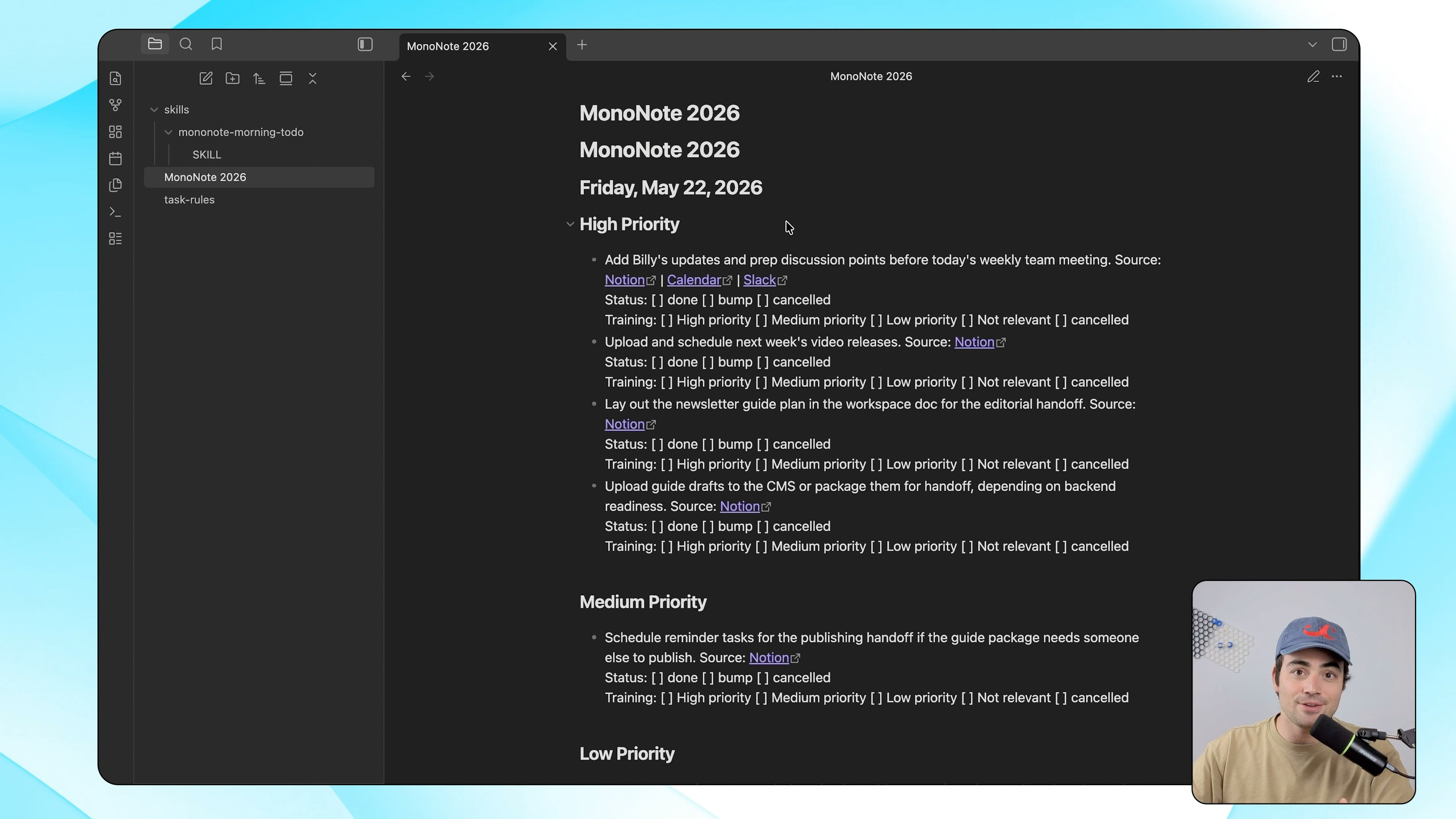
Not a fancy robot. Not an AGI that writes poetry. Just a dumb, honest taskmaster that checks three places—Slack, Gmail, and my calendar—every morning, turns the chaos into a ranked to-do list, and drops it into a file called MonoNote.md. Then I spend the rest of the day checking boxes.
The best part? It learns. Every day I use it, the taskmaster gets better at guessing what I actually care about.
Here’s exactly how I built it, step by step, using Claude Code (you could also use Codex, but Claude’s longer context helped with the feedback loop). No AI research degree required. Just a folder, a terminal, and about twenty minutes of setup.
What You’re Actually Building
Before we touch a keyboard, let’s name the thing.
You’re building an AI taskmaster—a script (wrapped in a Claude Code skill) that runs every morning, typically via cron or a scheduled GitHub Action. It does three things in order:
Pulls data from Slack (unread DMs, mentions, threads you’re in), Gmail (unread emails, starred emails, emails from specific people), and your calendar (today’s events, plus any events with notes or prep materials).
Prioritizes everything into High, Medium, or Low, using a set of rules that live in a separate file called task-rules.md.
Writes a clean, checkbox-ready list into MonoNote.md, grouped by source, with links back to the original message or email.
Then you open MonoNote.md in your favorite Markdown editor, check boxes as you work, and at the end of the day, you run the automation again—which reads yesterday’s checked/unchecked state, learns from what you actually did (or ignored), and improves tomorrow’s list.
It sounds like magic. It’s really just a few API calls and a prompt that says “look at what I ignored yesterday and don’t suggest it again unless it’s urgent.”
Step 1: The Folder and the First Prompt
Open your terminal. Create a folder anywhere you like—I keep mine in ~/dev/taskmaster but you do you.
bash
mkdir ai-taskmaster
cd ai-taskmaster
Now open Claude Code inside that folder. If you’ve used Claude Code before, you know the drill: just type claude and it drops you into an interactive session where you can talk to the agent and it can read/write files in your current directory.
Here’s the exact prompt I used. You can copy it almost verbatim:
Create a skill called "morning-taskmaster" that does the following every time it runs:
1. Checks my Slack messages (unread DMs, mentions, and threads I'm participating in).
2. Checks my Gmail (unread primary inbox, plus any emails from my boss or direct reports).
3. Checks my calendar (today's events, plus any events with attached notes or prep links).
*4. Prioritizes everything it finds into High, Medium, and Low. High priority = anything urgent from my manager, anything due today before 2pm, or anything with a red flag like "asap" or "blocked". Medium = everything else that requires action today. Low = FYIs, newsletters, and stuff I can read on my phone later.*
*5. Writes the final prioritized list at the top of a file called MonoNote.md with today's date as an H1 header, grouped by source (Slack/Gmail/Calendar), each task as a checkbox, and a link back to the original message or event.*
Claude Code will then ask you a few clarifying questions. Answer honestly. It will want to know:
Whether you have API keys for Slack, Gmail, and Google Calendar (you will need these—I’ll cover setup below).
Whether you want the list to overwrite MonoNote.md or append to it (I chose overwrite; yesterday’s list is still there in my git history).
What your default timezone is (important for “due today before 2pm” logic).
The agent will then write several files. The most important are:
MonoNote.md (empty at first, but will fill on first run)
task-rules.md (this is where all your prioritization logic lives)
run_taskmaster.py or run_taskmaster.sh (the actual script that calls the APIs and generates the list)
Step 2: The Secret Sauce Is task-rules.md
Here’s what people get wrong about AI task managers. They think the AI should magically know what’s important. No. You have to teach it.
That’s what task-rules.md is for. It’s a plain text file that contains your personal prioritization rules. Claude Code creates a starter version automatically, but you’ll want to edit it.
Here’s what mine looks like after a month of tweaking:
markdown
# Task Rules for Morning Taskmaster
## High Priority (always goes to top of list)
- Any Slack DM or mention from @my_manager_name
- Any email from @my_manager_name or @ceo_name with a question mark in the subject
- Calendar events with "DEADLINE" or "SHIPPING" in the title
- Slack threads where someone says "blocked" or "waiting on you"
- Any task I marked as "High" in yesterday's MonoNote and did NOT check off
## Medium Priority (everything else that needs action today)
- Slack messages in public channels where I'm mentioned but not urgently
- Emails from my direct team
- Calendar events with prep materials (Google Docs links, agendas)
- Tasks I marked as "Medium" yesterday and didn't finish
## Low Priority (bottom of list, but still visible)
- Newsletter emails (Claude Code will learn which senders are newsletters)
- General channel messages without my name
- Calendar events with "OPTIONAL" or "FYI"
- Any task I have ignored for three days in a row
## Never Show (noise filtering)
- GitHub or Jira automated notifications (unless they mention my name)
- Emails from noreply@ any domain
- Slack messages from #random or #watercooler channels
That’s it. There’s no AI magic in this file. It’s just rules. But because the taskmaster reads task-rules.md every morning before it parses your Slack/Gmail/calendar, you can change the rules at any time and see the effect the next day.
Pro tip: add one rule per week based on what annoyed you that week. Last month I added "Slack threads with more than 20 replies default to Low unless I'm explicitly mentioned" and it changed my life.
Step 3: First Run (Expect Garbage)
After Claude Code finishes writing the skill, you run it for the first time. In your terminal:
bash
python run_taskmaster.py
Or if they gave you a shell script:
bash
./run_taskmaster.sh
Your first run will be… fine. Not great. The AI will dutifully pull your unread Slack, your unread Gmail, and your calendar events. It will slap them into MonoNote.md with checkboxes. But the prioritization will feel a little off.
That’s okay. You’re not done. You’re training it.
Open MonoNote.md. Here’s what I saw on my first run:
markdown
# 2025-03-15
## High Priority
- [ ] [Slack] @jordan: "Can you review the Q2 numbers before 11am?" (link)
- [ ] [Email] [email protected] "Ticket PROJ-42 updated" (link)
- [ ] [Calendar] 10:30am Sprint Planning (Zoom link)
## Medium Priority
- [ ] [Slack] #general: "Reminder: office closed Friday" (link)
- [ ] [Email] newsletter@hackernews "Top 10 AI papers this week" (link)
- [ ] [Calendar] 2pm Optional Brown Bag (no agenda)
## Low Priority
- [ ] [Slack] @here: "New emoji added" (link)
See the problem? The Jira notification from [email protected] is in High Priority because I forgot to add a “never show” rule for it. The newsletter from Hacker News is Medium Priority, but I actually read those while brushing my teeth—should be Low.
So I edited task-rules.md:
markdown
## Never Show
- Any email from [email protected]
- Any email from [email protected]
## Low Priority
- Newsletters (hackernews, substack, medium)
Then I ran the script again. Much better.
This feedback loop is the entire point. You are not building a perfect AI. You are building a system that improves every time you look at its output and say “no, that’s wrong.”
Step 4: The Automation That Learns from Yesterday
Here’s where Claude Code earns its keep. After your first successful run, ask the agent to automate the learning part.
I typed this into Claude Code:
Now create an automation that runs the taskmaster, then after it runs, looks at yesterday’s feedback (which checkboxes I checked, which I left unchecked), and updates task-rules.md automatically. Also roll over any unfinished High priority tasks to today’s list. Run this automation every morning at 8am my time.
Claude Code asked for a few details (do you want to use cron, launchd, or GitHub Actions? I picked GitHub Actions because my laptop isn’t always on at 8am). Then it wrote:
A GitHub Actions YAML file scheduled for 8am daily
A small feedback parser that reads MonoNote.md from the previous day and compares checked vs unchecked boxes
A rule-updater that appends new rules to task-rules.md if it sees patterns (e.g., if you ignored emails from the same sender three days in a row, it suggests adding them to Low or Never Show)
The most useful pattern it discovered after two weeks: I never checked off calendar events that were just “Optional: catch up with X.” So it automatically moved any event with “Optional” in the title to Low Priority unless I had explicitly marked one as High the day before.
That’s not AGI. That’s just a script noticing that I keep skipping the same thing. But it feels like magic because I didn’t have to tell it to notice.
Step 5: Daily Ritual (Boring but Reliable)
Every morning now, this happens automatically:
At 8:02am, my phone gets a notification: “Taskmaster ran. 14 tasks. 3 high priority.”
I open MonoNote.md in Obsidian (you can use any Markdown editor, even VS Code or Notepad).
I glance at the High section first. Do those. Check the boxes.
I work through Medium if I have time.
Low gets looked at during lunch or ignored entirely.
At the end of the day, I don’t do anything. The automation runs again at 6pm (I configured a second run) to capture what I checked off. Then tomorrow morning’s run uses that feedback.
Here’s the part that surprised me: my stress level dropped by about 80% within a week. Not because the AI was smart. But because I stopped having to remember what I needed to do. The list just appears. I check boxes. I go home.
Pro Tip: The Weekly Audit Skill
After a month of using this, I noticed something weird. The same three types of tasks kept appearing in my Medium list every single week:
“Review PR #whatever” (Slack notification from GitHub)
“Check staging deploy logs” (Slack DM from a teammate)
“Approve timesheets” (calendar recurring event every Friday)
These were not real work. They were maintenance. But they cluttered my list every week.
So I asked Claude Code to build one more skill:
Create a weekly audit skill that runs every Sunday. It scans the last 7 days of MonoNote.md, finds tasks that appear at least 3 times, and suggests which ones could be fully automated with an AI or a simple script. Output the suggestions into automation_ideas.md.
The first week, it suggested:
Automate PR reviews by writing a script that checks for merge conflicts and assigns a confidence score, then only surfaces PRs below a threshold.
Automate staging log checks by setting up a health check endpoint and a Slack alert only on failure.
Automate timesheet approval by… wait, I can’t automate that, it’s a legal thing. But the audit skill correctly flagged it as “recurring manual task” and suggested I talk to HR.
I ended up automating the first two with a 50-line Python script and a Zapier webhook. Total time invested: two hours. Time saved per week: about 90 minutes.
That’s a 45x return over a year, if you’re counting.
What You Need to Make This Work (Real Talk)
Let me be honest about the hard parts.
API keys are annoying. You’ll need a Slack app with channels:read, groups:read, im:read, mpim:read, and users:read scopes. For Gmail, you need Gmail API access (which means an OAuth consent screen, which means a Google Cloud project). For Calendar, same deal. It took me about an hour to set up all three. That’s the worst part. After that, smooth sailing.
The AI will hallucinate links sometimes. Rare, but happens. Claude Code occasionally invents a slack://message?team=... link that doesn’t work. I fixed this by adding a validation step that checks if the link contains a valid thread ID before writing to MonoNote.md.
You need to trust the system. The first week, I kept checking Slack directly “just in case” the AI missed something. It never did. But my anxiety didn’t care. It took about 10 days before I stopped double-checking.
MonoNote.md gets long. I archive old months to archive/ folder using a separate monthly cleanup skill (yes, I made one. It’s like four lines of bash. You can do it manually too).
Why This Beats Every Off-the-Shelf Task Manager
I’ve tried Todoist, Asana, ClickUp, Motion, Reclaim, and a dozen others. They all have the same problem: you have to put the tasks in yourself.
The whole point of a task list is to get things out of your head. But most apps just make you move things from your head into their database. That’s not subtraction. That’s just moving the furniture.
This system pulls tasks from where they already live. Slack. Email. Calendar. No data entry. No “quick capture” buttons. No friction.
And because the prioritization rules live in task-rules.md—a plain text file you can edit with anything—you’re not locked into someone’s idea of what “AI prioritization” means. You just write rules. The AI follows them. If you don’t like the result, you change the rules.
That’s the actual secret. Not intelligence. Obedience.
Try It for One Week
Here’s my challenge to you.
Spend an afternoon setting this up. Run it manually for three days. Edit task-rules.md every morning based on what it got wrong the day before. By day four, it will be useful. By day seven, you won’t want to work without it.
And if you really want to see how far this goes, add the weekly audit skill after a month. The automation ideas it surfaces will surprise you. Not because they’re clever. Because they’re obvious—and you never noticed them because you were too busy checking boxes.
The AI taskmaster doesn’t do your work for you. But it does make sure you spend your energy on the work that matters. And these days, that’s worth more than any algorithm.
Your one-stop shop for automation insights and news on artificial intelligence is EngineAi.
Did you like this article? Check out more of our knowledgeable resources:
Watch this space for weekly updates on digital transformation, process automation, and machine learning. Let us assist you in bringing the future into your company right now