The Visual Code Revolution: How Stagewise and Cursor Are Redefining Frontend Precision
For frontend developers, the workflow has long been defined by a frustrating dichotomy: the code editor and the browser are two separate worlds, constantly out of sync. You write CSS in one window, refresh the browser in another, inspect elements to find the right class, guess at values, and hope the layout doesn't break. This context switching is not just annoying; it is a cognitive tax that slows iteration, introduces errors, and disrupts the flow state essential for creative problem-solving. Now, a new integration is collapsing that divide. By combining the Stagewise plugin with the Cursor IDE, developers can add an interactive toolbar to their live projects, enabling exact visual modifications and direct UI element selection without affecting layout or context. This isn't just a quality-of-life improvement; it is a fundamental shift toward visual precision in code-driven development.
The setup process is designed to be seamless, reflecting the philosophy that powerful tools should not require complex configuration. To begin, launch the Cursor IDE and navigate to the Extensions tab. Search for "stagewise" and click Install. Once the extension is active, press Cmd + Shift + P to open the command palette, type "Stagewise," and select "Auto setup toolbar." This critical step allows the plugin to examine and edit your project files, establishing the connection between the visual layer in your browser and the codebase in your editor. Unlike traditional browser extensions that operate in isolation, Stagewise integrates directly with the development environment, ensuring that every visual change is reflected in the source code immediately. This tight coupling is what enables true precision—no more guessing which CSS file controls which element.
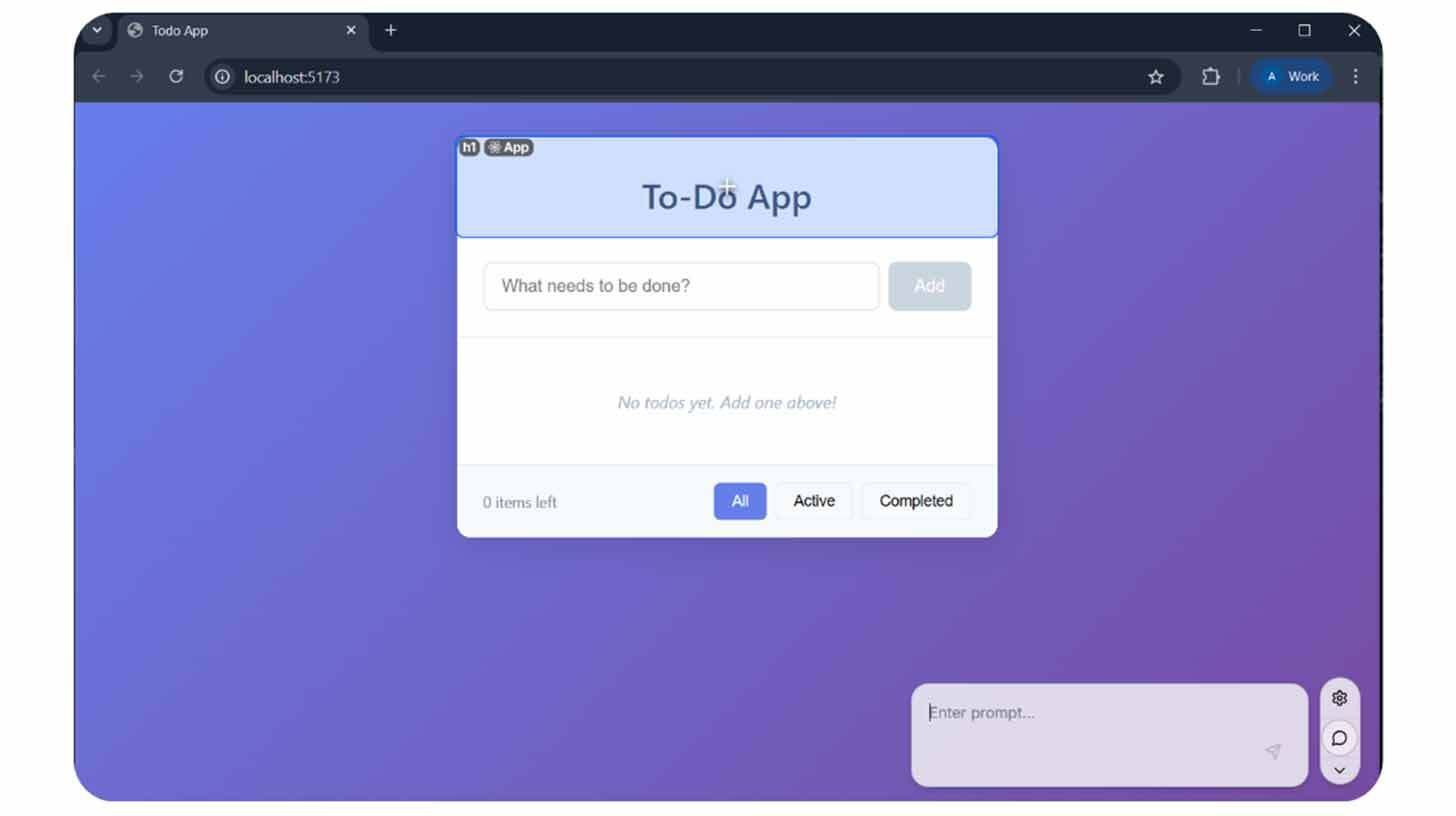
Once configured, the workflow transforms from linear to interactive. Launch your web application using your standard development server (for example, npm run dev). As the application runs, hover over any element you wish to modify. The Stagewise toolbar appears at the bottom of the screen, providing a direct interface for interaction. Click the element to select it, then specify the task in natural language. For instance, you might prompt: "Make this button fully rounded and add a subtle hover animation." The AI interprets this request within the context of the selected element, generating the appropriate CSS or component updates without disrupting surrounding layout structures. This is where the integration shines: it understands not just the visual property you want to change, but the structural integrity of the component you're editing.
The power of this approach extends beyond single-element tweaks. One of the most time-consuming tasks in frontend development is ensuring consistency across an application. Changing the color of a primary button often means finding every instance of that button class, verifying overrides, and testing each page. Stagewise simplifies this through multi-select functionality. You can pick numerous items at once, allowing for uniform styling changes throughout your app with a single command. Want to alter the color of multiple buttons across different pages? Select them all, issue one prompt, and the changes apply globally. Need to adjust the font size of all your headers? The toolbar handles the propagation of that change intelligently. This capability is ideal for maintaining design system integrity, reducing the risk of visual debt, and accelerating the implementation of brand updates.
The strategic implications of this tool are profound for development teams. Traditionally, visual adjustments required a back-and-forth between designers and developers: a designer marks up a Figma file, a developer translates it to code, and then both review the implementation. Stagewise compresses this loop. Developers can make visual decisions in real-time, seeing the impact immediately without sacrificing code quality. This doesn't replace designers; it empowers developers to execute design intent more accurately and efficiently. It also reduces the friction of iteration: instead of scheduling a review meeting for minor tweaks, developers can experiment with different styles live, committing only the versions that work best. This agility is particularly valuable in startup environments or rapid prototyping phases where speed to market is critical.
Moreover, the integration preserves the sanctity of the codebase. One fear of visual editing tools is that they generate messy, inline styles or obscure class names that become technical debt. Stagewise avoids this by operating within the context of your existing project structure. It edits your files directly, respecting your naming conventions, component architecture, and styling methodology (whether that's Tailwind, CSS Modules, or styled-components). This ensures that the speed of visual editing doesn't come at the cost of maintainability. The AI understands the context of the chosen element in the query, meaning it doesn't just apply a hack; it integrates the change into the logical structure of your application. This is crucial for long-term project health, where clean, readable code is as important as visual fidelity.
For the broader industry, this tool represents a convergence of trends: AI-assisted development, visual programming, and integrated development environments. As models become more capable of understanding code semantics and visual relationships, the boundary between "designing" and "coding" will continue to blur. Tools like Stagewise and Cursor are pioneering a future where developers can think visually while working programmatically, leveraging the best of both paradigms. This hybrid approach could democratize frontend development, making it more accessible to those with strong design instincts but less CSS expertise, while also empowering seasoned engineers to work faster.
Looking ahead, the potential for expansion is significant. Imagine integrating this workflow with design tokens, where changing a color in the toolbar updates the underlying token value. Or connecting it to accessibility checkers, where the AI suggests contrast improvements as you style. The foundation laid by Stagewise and Cursor opens the door for a new generation of intelligent, context-aware development tools that prioritize human intent over manual syntax.
The age of disjointed frontend workflows is ending. In its place rises a vision of integrated precision, where code and visuals exist in harmony. Stagewise and Cursor are not just plugins; they are a blueprint for that future. The setup is simple. The workflow is intuitive. The impact is immediate.
For developers ready to reclaim their flow state and eliminate the friction of visual iteration, the path is clear. Install the extension, run the setup, and start editing visually. The code will follow. The future of frontend development is not just about writing code; it is about shaping experience directly. And with tools like this, that future is already here.
Your one-stop shop for automation insights and news on artificial intelligence is EngineAi.
Did you like this article? Check out more of our knowledgeable resources:
Watch this space for weekly updates on digital transformation, process automation, and machine learning. Let us assist you in bringing the future into your company right now