A month ago, rebranding a company meant weeks of meetings, mood boards, agency presentations, and five-figure invoices. A designer would audit your existing materials, interview stakeholders, sketch concepts, iterate based on feedback, and finally deliver a style guide, a logo suite, and maybe a few web components. The process was linear, expensive, and exhausting.
Then Anthropic launched Claude Design. And the process changed.
Claude Design is not a design tool in the traditional sense. It is a design collaborator that can read your existing website, extract your brand essence, generate a refreshed visual identity, and produce a complete set of deliverables—marketing pages, web app components, slide decks, and more—in a single conversation. The outputs are not rough drafts. They are production-ready assets that can be exported to Claude Code, Canva, PPTX, PDF, or standalone HTML.
This guide will walk you through a complete brand design workflow using Claude Design, from a screenshot of your current site to a full design system with typography, colors, web components, a website, and PowerPoint templates. The entire process takes about an hour—less time than a single stakeholder meeting in the old world.
Note: Claude Design is available to Claude Pro, Max, Team, and Enterprise subscribers. You will need access to at least one AI image generation tool (ChatGPT, Midjourney, or similar) for the logo step.
Part I: The Audit – Reading Your Current Brand
Every brand redesign starts with understanding what already exists. In the old workflow, this meant a discovery phase—interviews, surveys, and a lot of expensive consultant hours. In the new workflow, it starts with a screenshot and a single prompt.
Step 1: Capture your current site
Take a full-page screenshot of your current website. Include the header, hero section, a content block, and the footer. If your site has multiple distinct page templates (e.g., a marketing page and an app dashboard), screenshot those as well.
Step 2: Analyze and refresh
Drop the screenshot into your favorite AI image model. We used ChatGPT-4o's vision capabilities, but Claude itself (Opus 4.7) or Gemini 3.1 Pro would also work. Use this prompt:
*"Analyze this website and create a refreshed brand description. Keep what works—the core personality, the successful visual elements, the tone of voice—but sharpen the positioning, visual direction, typography, and color palette. Identify what feels dated, generic, or inconsistent. Give me a concise brand summary I can use in Claude Design (about 200-300 words, focusing on visual and tonal guidelines)."*
The AI will return a structured brand description. It might identify that your current typography is too playful for a B2B audience, or that your color palette lacks contrast, or that your positioning is muddled. It will then propose a refreshed direction.
Pro tip: If you have existing brand guidelines (a PDF style guide, a Notion doc, a set of Figma files), upload those as well. The more context you provide, the sharper Claude Design's output will be.
Step 3: Review and refine
Read the AI's brand description. Does it feel true to your organization? If something is off—the tone feels too formal, the color direction is wrong—ask for a revision. "Make it more adventurous" or "Simplify the color palette to two primary colors" are valid follow-ups. Iterate until you have a description you believe in.
This entire audit-and-refresh process takes about 10 minutes. In the old world, it would have taken a week.
Part II: The Logo – Generating Your Visual Mark
With a refreshed brand description in hand, it is time to create the visual centerpiece of your identity: the logo.
Step 1: Choose your image model
Claude Design does not generate logos directly. It will incorporate logos you provide into its designs. So you need to generate a logo elsewhere. We liked ChatGPT's image model (DALL-E 4, built into GPT-5.5) for this task, but Midjourney, Adobe Firefly, or any other image generator will work. The key is a model that understands typography and can generate clean, scalable marks.
Step 2: Craft your logo prompt
Take your brand description and turn it into a logo prompt. Be specific:
"Generate a logo and a wordmark logo for a brand called [Your Brand Name]. The brand description is: [paste your description]. The logo should be modern, clean, and scalable. The wordmark should pair with the logo mark. Provide two versions: a horizontal lockup (mark + wordmark) and a vertical stack (mark above wordmark). Use a color palette consistent with the brand description."
Step 3: Generate and select
Run the prompt. Generate at least four variations. Look for:
Clarity: Is the mark recognizable at small sizes?
Versatility: Does it work in black and white?
Distinctiveness: Is it unique, or does it look like a generic template?
Typography: Is the wordmark legible and well-kerned?
Select the best option. If none are perfect, iterate: "Make the icon more abstract" or "Use a serif font for the wordmark" or "Simplify the mark to a single shape."
Step 4: Prepare your assets
Download the final logo and wordmark as PNG files with transparent backgrounds. Also save versions on a light background and a dark background. Claude Design will use these as reference assets.
The logo step takes about 15 minutes. In the old world, a professional logo design would take 1-2 weeks and cost $2,000-10,000. AI is not a perfect substitute for a top-tier brand designer, but for most startups, internal projects, and small businesses, it is more than sufficient.
Part III: Claude Design Setup – Feeding the System
Now you move to Claude Design. This is where the real magic happens.
Step 1: Navigate to Claude Design
Go to claude.ai/design. (If you receive a region block message, you may need to use a VPN or check Anthropic's supported countries list.)
Step 2: Open the Design Systems tab
Click on the Design systems tab. This is Claude Design's brand memory. Anything you put here will be applied to every future project.
Step 3: Enter your brand information
You will see several fields. Fill them as follows:
First box (Site name): Enter your company or product name. This is how Claude will refer to the brand.
Last box (Brand description): Paste the refreshed brand description you created in Part I. This is the most important input. Be precise.
Step 4: Upload your assets
Claude Design accepts images, PDFs, and even code files. Upload:
Your logo (PNG, transparent background)
Your wordmark (PNG, transparent background)
Any other visual assets you want Claude to use (photos, patterns, icons, existing marketing materials)
If you have a design system file (Figma, Sketch, or even a PDF style guide), upload that as well
Step 5: Hit enter
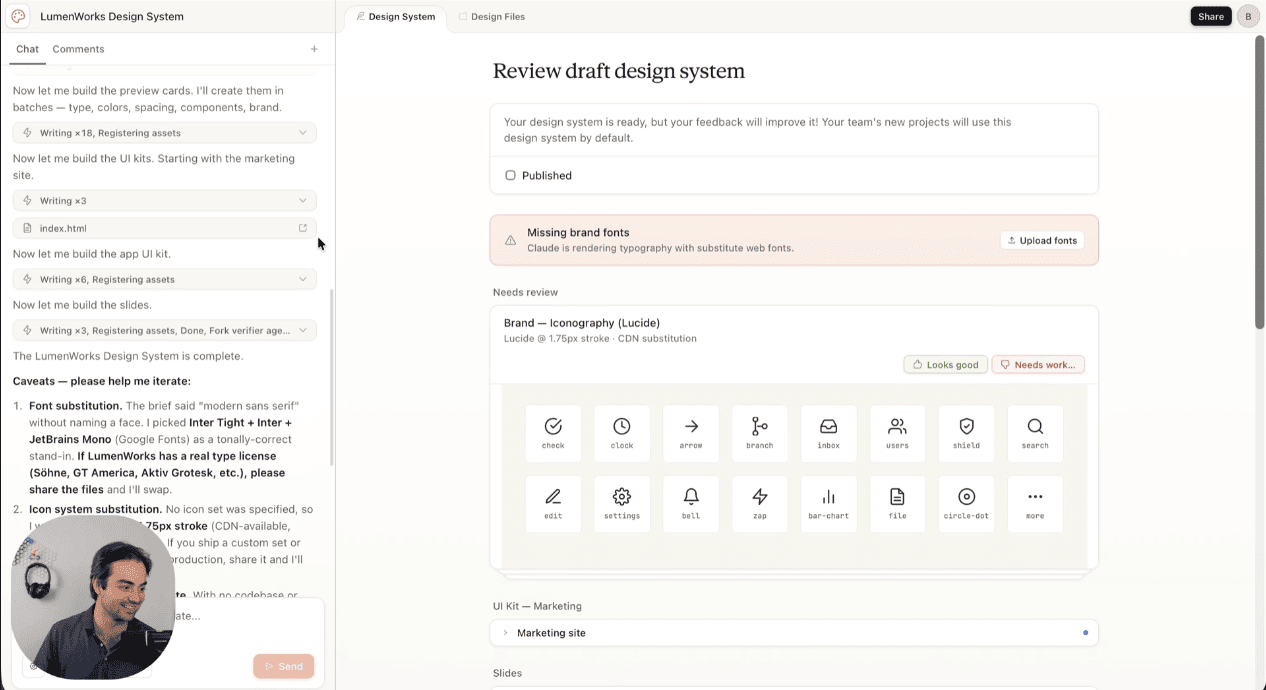
Claude will process your inputs. This takes about 30-60 seconds. When it finishes, it will have built a persistent design system that includes:
Your color palette (primary, secondary, accent, neutrals)
Your typography (heading and body fonts, with sizes and weights)
Your component styles (buttons, cards, forms, navigation)
Your spacing and layout grid
Your logo usage rules
This design system is now saved to your account. Every future Claude Design project—whether you are building a landing page, a slide deck, or a web app—will automatically use these brand guidelines.
"The design system is the killer feature," said Sarah Jenkins, a design operations consultant who has been using Claude Design in beta. "Once you build it, you never have to tell Claude your brand colors again. It just knows. That saves hours of repetitive prompting."
Part IV: The Deliverables – Marketing Pages, Web Apps, and Slide Decks
With your design system in place, you can now generate actual deliverables. Claude Design will have already created several things automatically.
Step 1: Review the auto-generated assets
After you build your design system, Claude Design automatically generates:
A marketing page (homepage template)
A web app page (dashboard or application interface template)
A set of slide decks (typically 5-10 slides with brand-compliant layouts)
These are not placeholders. They are fully designed, interactive pages (HTML/CSS) and slide decks (which you can export to PPTX or Canva).
Step 2: Provide feedback
Claude Design accepts multiple forms of refinement:
Inline comments: Click on any element and type a comment. "Make this button larger." "Change this heading to our brand color."
Direct edits: Select text and type over it. Claude will adjust spacing and layout to accommodate your changes.
Custom sliders: For any design property (spacing, color intensity, layout density), Claude can generate a slider control. Adjust the slider, and Claude updates the design live.
Iterate until the designs feel right. Because Claude remembers your design system, refinements are consistent across all deliverables. Changing the primary button color on the marketing page automatically updates it on the web app page and the slide decks.
Step 3: Add specific prompts
If you need something the auto-generated templates do not include, just ask. "Add a pricing section with three tiers" or "Create a slide about our team history" or "Add a customer testimonial carousel." Claude will generate new components that match your design system.
The refinement process takes about 20-30 minutes. In the old world, designing a homepage, a dashboard, and a slide deck from scratch would take 2-3 weeks.
Part V: The Handoff – Exporting to Claude Code and Other Tools
The final step is getting your designs out of Claude Design and into production.
Step 1: Use the Share button
Click Share in the top-right corner of Claude Design. You have several options:
Internal URL: Anyone in your organization with the link can view the design. You can grant edit access to collaborators.
Export to Canva: For slide decks and marketing materials, sending to Canva allows non-designers to make additional tweaks.
Export as PPTX: For presentations, a standard PowerPoint file.
Export as PDF: For printing or archiving.
Export as standalone HTML: For web pages, this gives you a complete, self-contained HTML file you can host anywhere.
Step 2: Hand off to Claude Code
The most powerful option is the Claude Code handoff. Click this, and Claude Design packages everything—the design, the components, the interactions, the assets—into a bundle. You then go to Claude Code (available within Claude.ai or as a standalone interface) and give a single instruction:
"Build the design from the handoff bundle."
Claude Code will generate the actual implementation code: React components, CSS modules, HTML structure, and even basic interactivity. The handoff is lossless. The design intent is preserved.
"This is the loop closer," said Marcus Wei, a full-stack developer who has used the handoff extensively. "Before Claude Design, I would get a Figma file from a designer and spend days translating it into code. Now the design exports directly to Claude Code. I still need to review and tweak, but 80% of the work is done. That is transformative."
Step 3: Deploy
From Claude Code, you can:
Copy the generated code directly.
Push to a GitHub repository.
Deploy to Vercel, Netlify, or any hosting provider.
Continue iterating with Claude Code's coding assistance.
The entire process—from screenshot to deployed website—can take as little as two hours. For a simple marketing site, you could go from idea to live in an afternoon.
Pro Tips for Power Users
Maintain multiple design systems
Claude Design allows you to store more than one design system. If you work on multiple brands (an agency, a holding company, a product portfolio), you can switch between systems. Each system retains its own colors, typography, and components.
Iterate the design system, not just the outputs
If you notice that Claude consistently makes a certain mistake—using the wrong heading hierarchy, misapplying spacing—do not fix it in each output. Go back to the Design Systems tab and update the system. The fix will propagate to all future projects.
Use Claude Design as a collaboration tool
Designs have organization-scoped sharing. You can keep a document private, share it so anyone in your organization with the link can view it, or grant edit access so colleagues can modify the design and chat with Claude together in a group conversation. Use this for design reviews. Instead of asynchronous feedback in a Slack thread, gather the team in Claude Design and refine live.
Combine with external assets
Claude Design can accept uploaded images, PDFs, and code files. If you have existing brand photography, icon sets, or illustration libraries, upload them. Claude will incorporate them into its designs, respecting your existing assets.
Export early, export often
Do not wait for perfection. Export a draft to Claude Code, see how the implementation feels, then return to Claude Design to refine. The handoff is bidirectional—you can take code from Claude Code, bring it back into Claude Design as context, and iterate further. The loop is closed.
Why This Workflow Changes Everything
The traditional brand design process was linear, siloed, and slow. Discovery led to design led to development, with handoffs between specialists who spoke different languages. Feedback loops were measured in days. Iteration was expensive.
Claude Design collapses that pipeline. The same tool that analyzes your brand builds your design system, generates your deliverables, and hands off to code. Feedback is instantaneous. Iteration is free. The designer, the developer, and the stakeholder can collaborate in the same conversation.
"For founders, this is a superpower," said Chen. "You no longer need to hire a designer to build a pitch deck, a marketing site, and a prototype. You can do it yourself in an afternoon. That lowers the barrier to launching a new product by an order of magnitude."
For professional designers, Claude Design is not a threat—it is a power tool. It handles the mechanical work: generating consistent components, applying brand guidelines, exporting to multiple formats. It frees designers to focus on strategy, creativity, and the human judgment that AI still cannot replicate.
Your one-stop shop for automation insights and news on artificial intelligence is EngineAi.
Did you like this article? Check out more of our knowledgeable resources:
Watch this space for weekly updates on digital transformation, process automation, and machine learning. Let us assist you in bringing the future into your company right now